- 1
Choose your takeoff and your goal
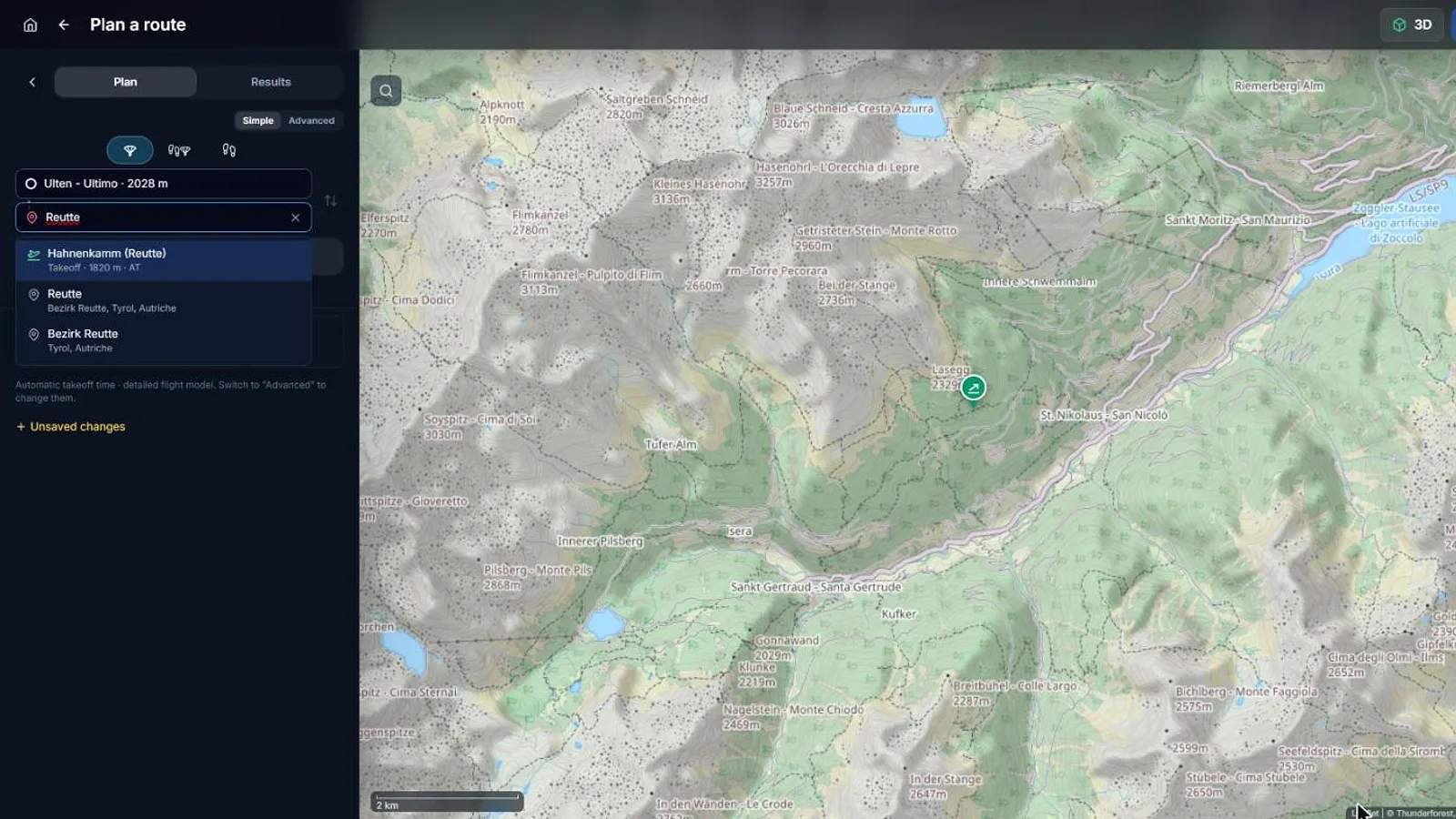
Open the Route Planner from the home page. It opens in Simple mode. Type your takeoff in the first field and pick it from the list, then do the same for your goal in the second field.
Known takeoffs appear first, with their altitude. You can also click directly on the map to place a point.
You only place where you start and where you want to go. You never place the thermals: XCviewer does it for you.
- 2
Set the day and your glider
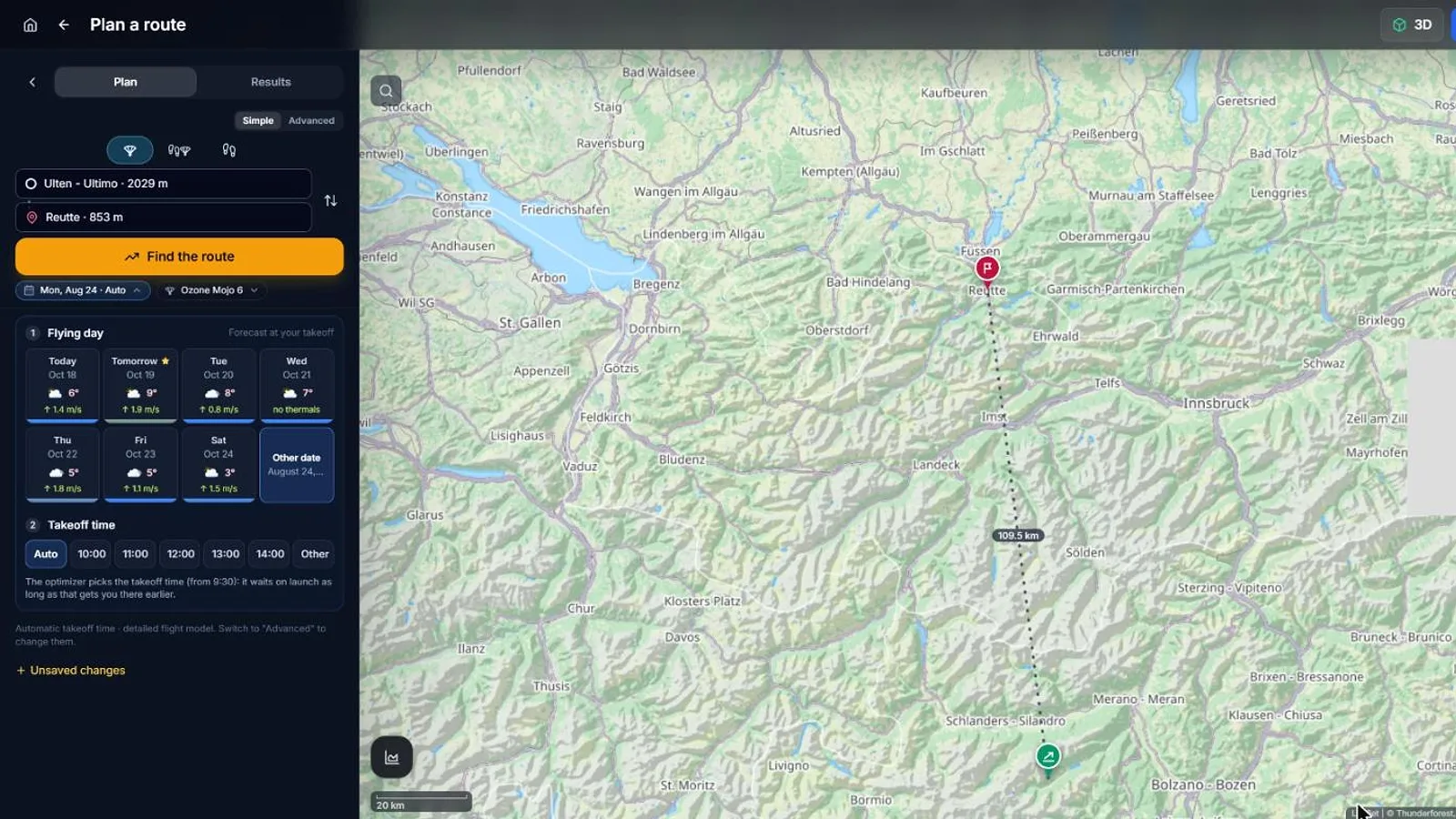
Under the fields, two small buttons show the day and the glider. Click the day to see the week: each card shows the forecast at your takeoff. The takeoff time stays on Auto: XCviewer picks the best moment to leave.
Click the glider to choose the wing you will fly. Its polar (speed, sink rate, glide ratio) changes the route: a high-performance wing and an EN-B will not get the same plan.
No glider yet? Add yours in Settings → Gliders, with its polar, for the most realistic plan.
- 3
Find the route
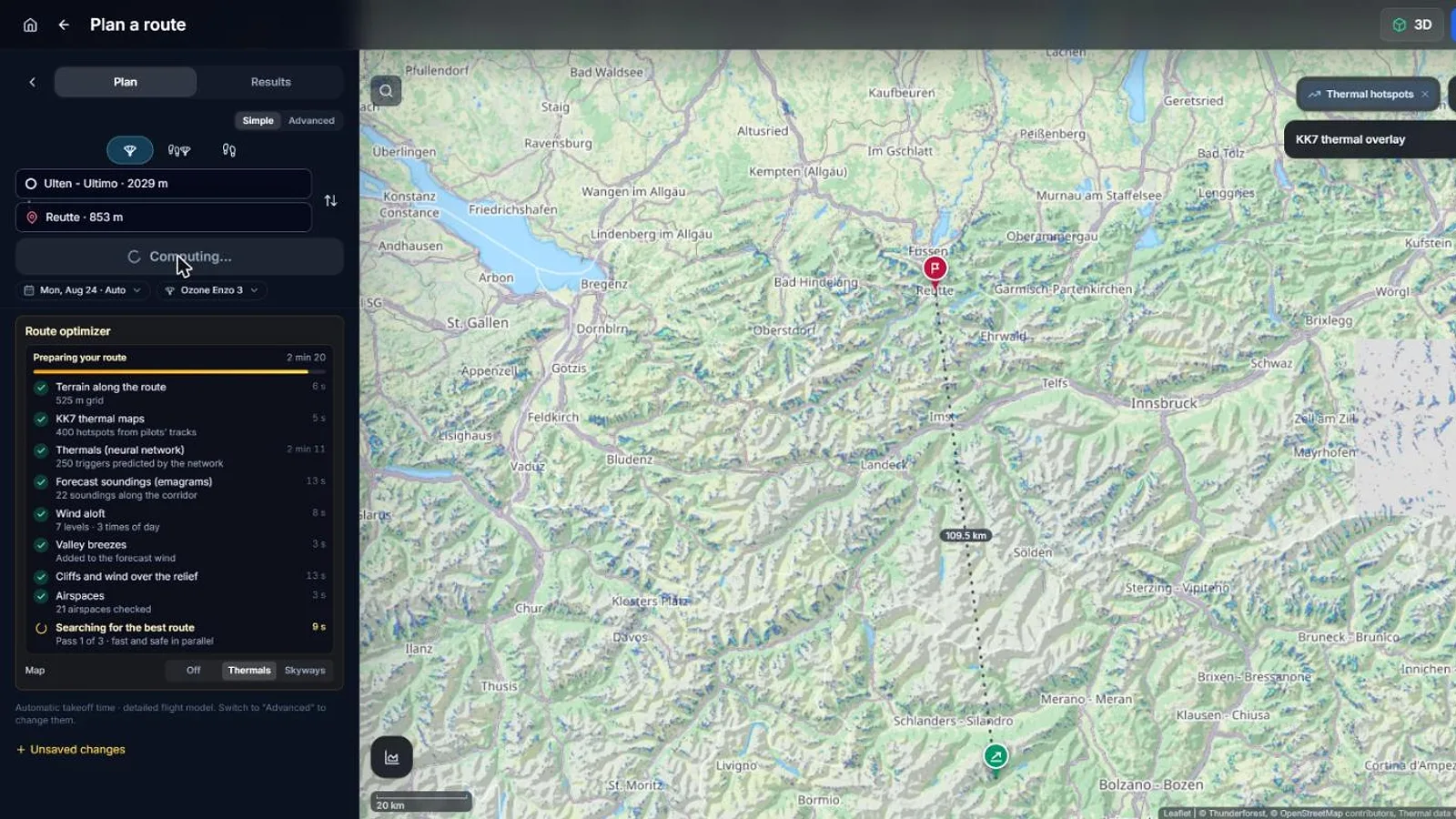
Click Find the route. XCviewer reads the terrain, the thermal maps, the forecast soundings, the wind aloft, the valley breezes and the airspace along your corridor: a list shows each step as it finishes. Then it tests thousands of glides with your glider.
The first route appears on the map while XCviewer keeps refining it and computes alternatives. A long task can take a few minutes.
Free accounts can run the optimizer three times.
- 4
Read the result and choose your route
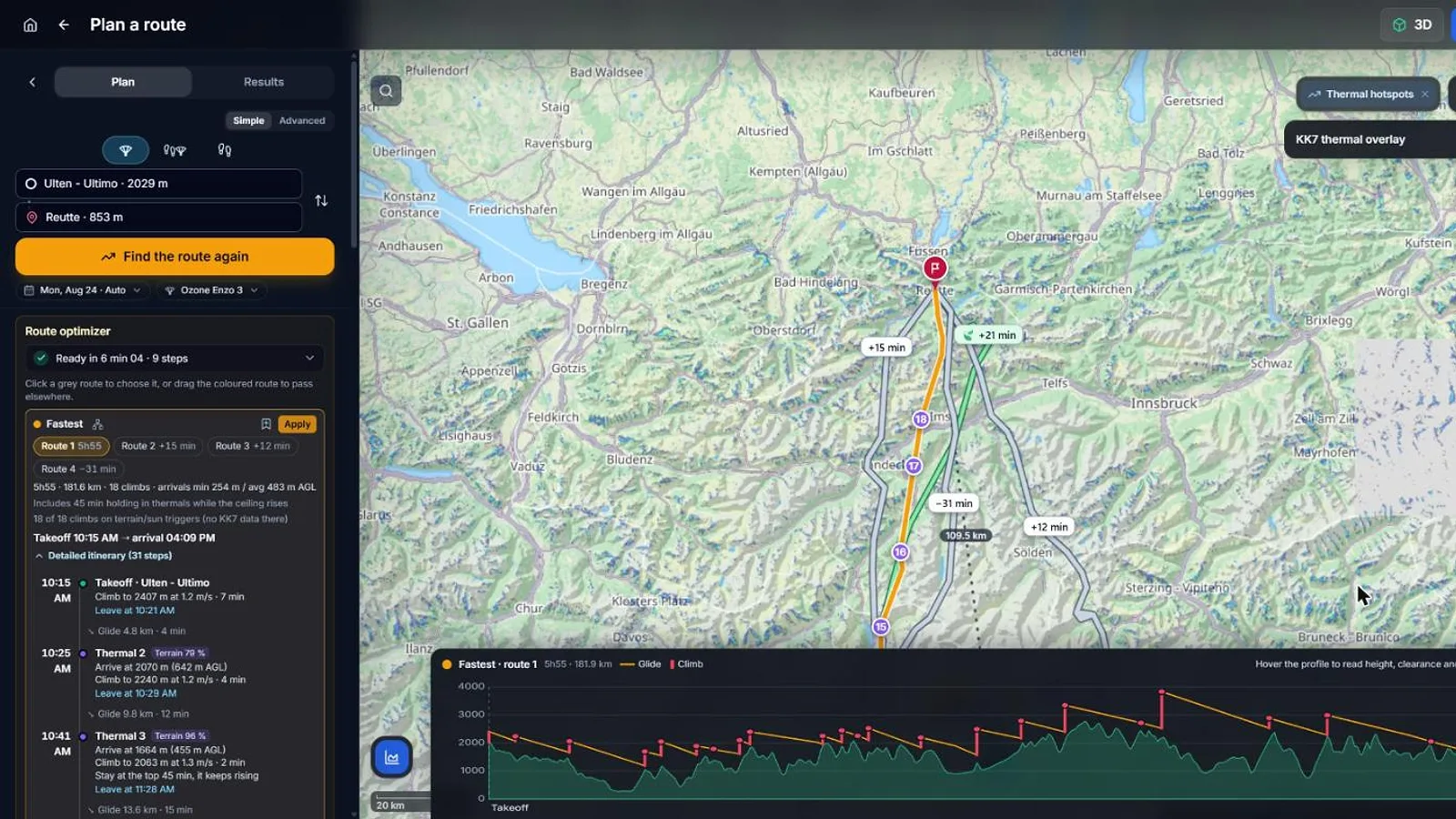
The best route appears in orange, with every planned climb numbered on the map. The card on the left sums it up: duration, distance, number of climbs, arrival heights and the suggested takeoff time.
Compare the alternatives, or drag the orange line on the map to pass through another valley: XCviewer recomputes through your detour. When you are happy, click Apply and Save.
- 5
Go further: Advanced mode
Switch to Advanced at the top of the panel to see every step: When & where, Conditions, Task, Optimize, My route and Export.
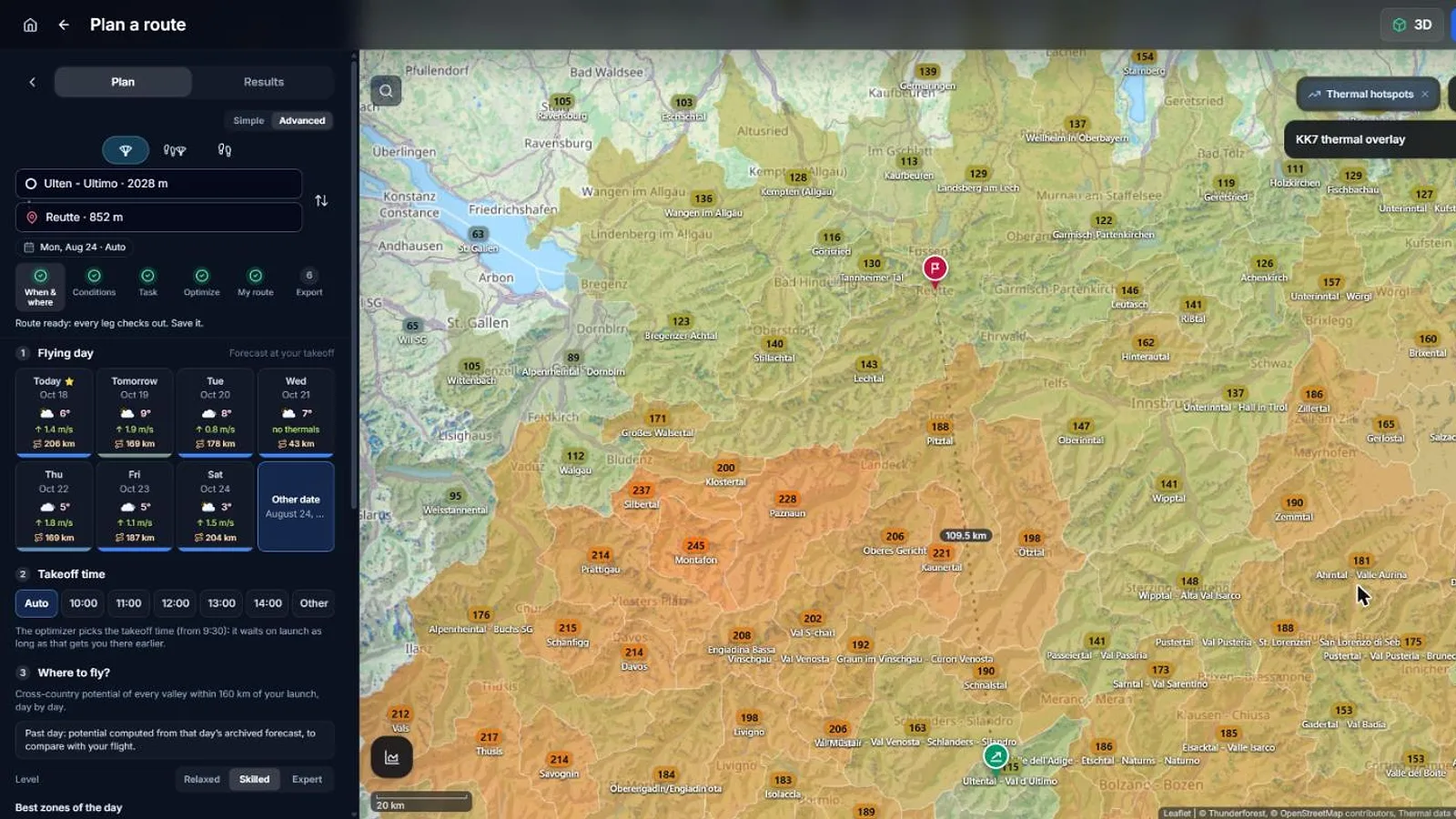
In When & where, each day card also shows the best cross-country distance around you, and the star marks the day where it is highest. Further down, compare the valleys around you (see the Find where to fly tutorial). In Conditions, set an exact takeoff time and the flight model.
- 6
Plan an FAI triangle
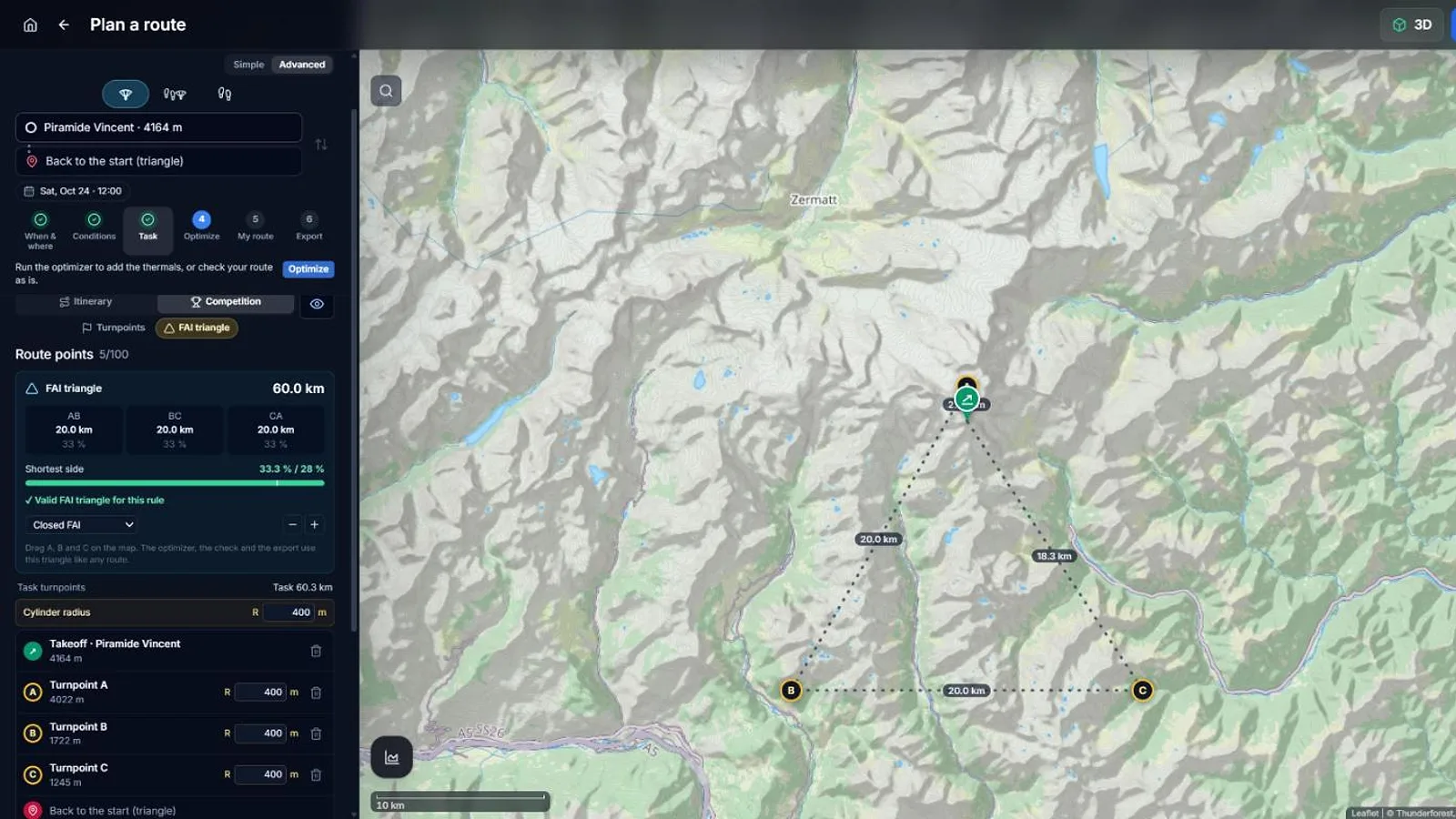
Want to fly a closed triangle? In the Task step, choose Competition, then FAI triangle. The goal becomes "Back to the start (triangle)", and you place turnpoints A, B and C on the map, or click Suggest a 60 km triangle.
The panel shows each side and tells you live whether the triangle is valid. Drag A, B or C on the map to fit it to the terrain, then run the optimizer on it as on any route.
Smaller, valid FAI triangles often score better than big flat ones.
- 7
Check every leg
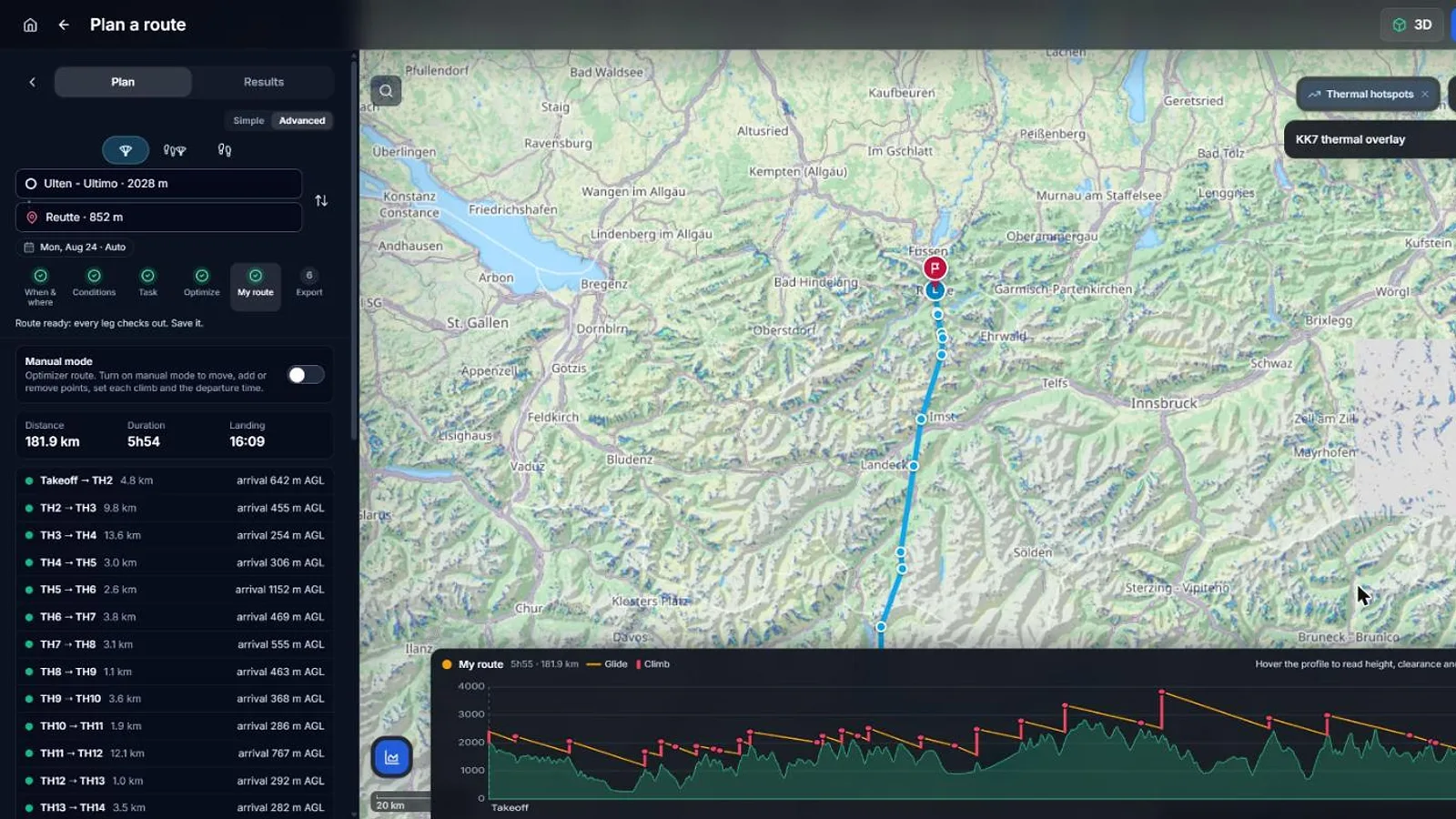
Open the My route step. Each leg is listed with its distance and its arrival height above the ground: green means it works, orange or red means you should look at it.
Open the profile to see the whole flight from the side: terrain, climbs, glides and the wind at each point. Warnings (lee side, foehn, waves) appear here too.
- 8
Send it to your instrument
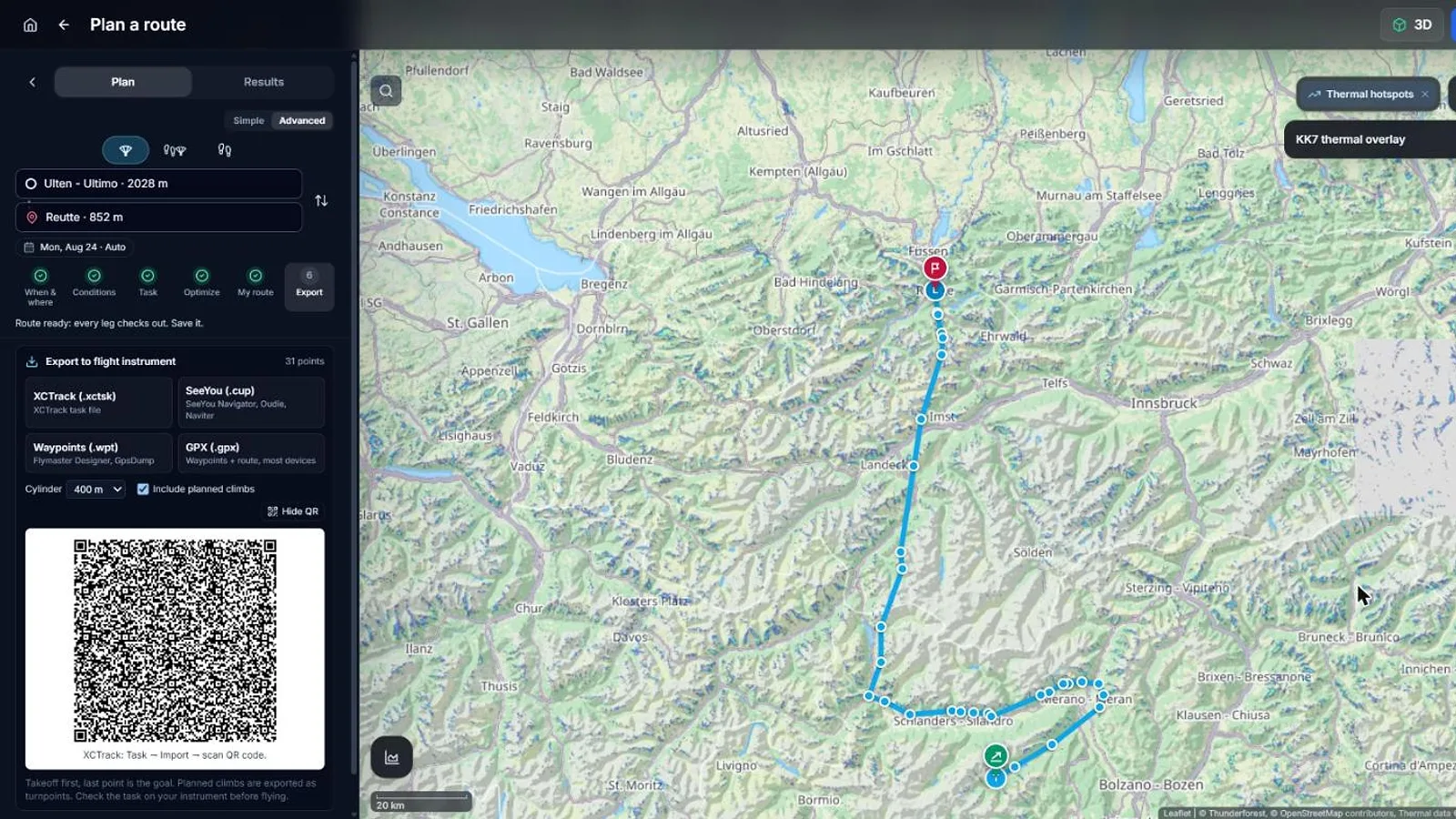
Open the Export step. On a phone with XCTrack, show the XCTrack QR code and scan it (in XCTrack: Task → Import → scan QR code).
For other instruments, download the file: SeeYou (.cup) for SeeYou Navigator and Oudie, Waypoints (.wpt), or GPX for most devices.
Always check the task on your instrument before takeoff.
Frequently asked questions
Is the route optimizer free?
Free accounts can run it three times to try it. Pro gives unlimited runs, including Hike & Fly.
Which data does the optimizer use?
The forecast wind at several altitudes and times of day, soundings (cloud base, thermal strength), thermal hotspots from pilots' tracks for the season and time, the XCviewer thermal model where few pilots have flown, valley breezes, airspace, landing fields and your glider's polar.
What if no route is found?
The optimizer shows how far it got and why it stopped: a ridge in the way, a ceiling too low, an airspace floor or wind too strong. Try another time, a shorter task or another glider.
Can I simply fly the suggested route?
No. It is a plan built from forecasts and models. Use it to prepare, keep your margins and adapt to what you find in the air.